
Booking tours and activities online is convenient, but many travelers still wonder what happens after they complete a reservation. Do you need to print the ticket? Can you show it on your phone? Where can you find the voucher? What happens if you do not have an internet connection?
With Viator, most eligible tours and activities can be accessed digitally. Your Viator travel voucher acts as your ticket and proof of purchase, and for experiences that accept e-vouchers, you can simply show the voucher on your smartphone when you arrive.
The Viator app also lets travelers access tickets, manage bookings, receive activity notifications, and communicate with tour operators. It can even make tickets available offline, which is particularly useful when you are traveling without reliable mobile data.
Here is exactly how to use Viator mobile tickets before and during your trip.
What Is a Viator Mobile Ticket?
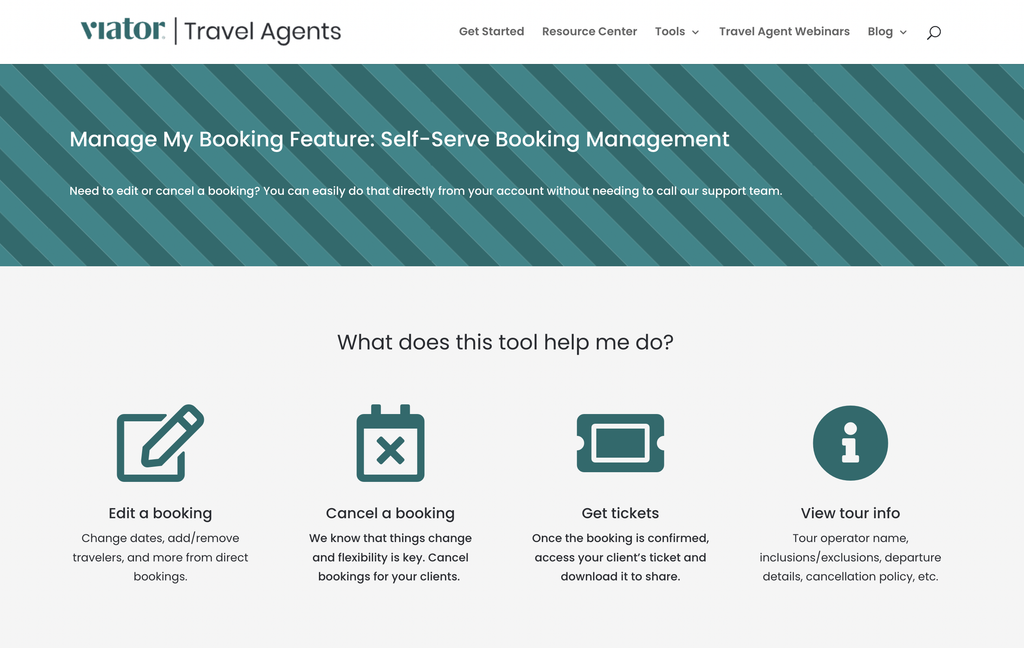
A Viator mobile ticket is the digital version of your booking voucher. After making a reservation, Viator provides a confirmation containing your booking information and access to your voucher.
The voucher normally includes important details such as:
- Booking reference
- Activity name
- Date and time
- Meeting or pickup location
- Tour operator information
- Instructions for redeeming the ticket
- Cancellation information
- Important requirements
The voucher is unique to your reservation and serves as proof that you purchased the experience.
Not every activity has exactly the same ticket requirements. Some accept a mobile e-voucher, while others may still require a printed voucher. Viator recommends checking the Voucher Information section for your particular activity before traveling.
How to Access Your Viator Mobile Ticket
There are several ways to access your ticket.
Option 1: Use the Viator App
The easiest method for many travelers is the Viator mobile app.
After installing the app:
- Open the Viator app.
- Sign in using the account associated with your booking.
- Go to your bookings or trips.
- Select the activity you booked.
- Open the ticket or voucher.
- Review the instructions before traveling.
Viator states that its app allows travelers to access tickets offline, manage reservations, receive notifications, and contact tour guides.
Option 2: Use Your Confirmation Email
You can also access your voucher through the confirmation email received after booking.
Open the email and look for the voucher or booking link. Follow the instructions to open your unique voucher.
If you cannot open the voucher link, Viator recommends copying and pasting the link into a fresh browser window.
For travelers who prefer not to install an app, this method can be perfectly adequate.
How to Use a Viator Mobile Ticket at the Activity
Using the ticket is usually straightforward.
When you arrive at the designated meeting point, open your Viator voucher on your smartphone.
Show the voucher to the tour representative, guide, attraction staff, or other designated provider.
The operator may check:
- Your booking reference
- QR code or ticket details, if provided
- Activity date and time
- Number of travelers
- Your name
- Photo identification
Viator states that travelers should present the voucher together with valid photo ID when required for purchase verification.
The exact redemption process depends on the activity.
Some experiences may simply require you to show the voucher. Others may have specific instructions about exchanging the voucher for an admission ticket or meeting a guide at a particular location.
That is why you should always read the Important Information section on the voucher before leaving for the activity.
Do You Need to Print a Viator Ticket?
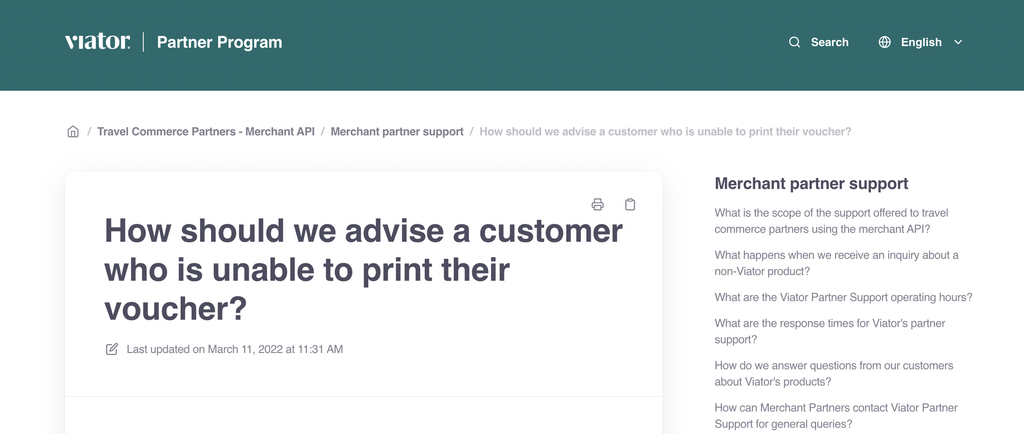
Usually, no.
Many Viator activities now accept electronic vouchers, allowing you to show the ticket directly from your smartphone.
However, you should not assume that every activity accepts mobile tickets.
Check the Voucher Information section on your confirmation or activity page.
| Ticket Requirement | What You Should Do |
|---|---|
| E-voucher accepted | Show the voucher on your smartphone |
| Mobile ticket accepted | Open the ticket in the app or on your phone |
| Paper voucher required | Print the voucher before traveling |
| Special redemption instructions | Follow the instructions shown on the voucher |
Even when a mobile ticket is accepted, keeping a backup screenshot or saved copy is a smart precaution.
How to Access Viator Tickets Offline
One of the most useful features of the Viator app is offline ticket access.
This matters when you are visiting another country and do not have:
- Mobile data
- Reliable Wi-Fi
- A local SIM card
- Good network coverage
Before heading to your activity, open your booking in the app and make sure the ticket is available.
Viator specifically promotes offline access to tickets through its mobile app.
A Simple Backup Strategy
Before leaving your hotel, consider:
- Open the Viator app.
- Open your reservation.
- Confirm that the ticket loads.
- Save a screenshot if appropriate.
- Note the meeting point.
- Check the operator’s instructions.
This gives you multiple ways to access your reservation if your connection stops working.
What If You Cannot Find Your Viator Ticket?
If your ticket is missing, start with the confirmation email.
Search your inbox for your Viator booking confirmation and open the voucher link.
You can also check your booking through the Viator app if you made the reservation while signed into your account.
If the voucher link does not work, Viator’s Help Center recommends trying the link in a fresh browser. If the problem continues, customer service can help with the voucher.
Before contacting support, have your booking information available. This can make it easier to locate the reservation.
What If You Do Not Have a Printer?
Not having a printer does not necessarily create a problem.
Viator says most tours no longer require paper vouchers. If the activity accepts an e-voucher, you can access it on your smartphone.
If your particular activity requires a paper voucher, however, you should follow the instructions provided by Viator.
The important point is to check the voucher requirements before the day of your activity, rather than discovering the requirement when you arrive.
Can You Use a Screenshot of a Viator Ticket?
A screenshot can be useful as a backup, but whether it is sufficient depends on the activity.
Some experiences may require a live ticket, specific QR code, or additional booking information. Others may simply need the voucher details.
The safest approach is:
- Keep the original voucher accessible
- Make the ticket available offline
- Save a screenshot as a backup
- Follow the activity’s redemption instructions
Do not rely solely on a screenshot if the voucher specifically says that another form of ticket or verification is required.
What Information Should You Check Before Leaving?
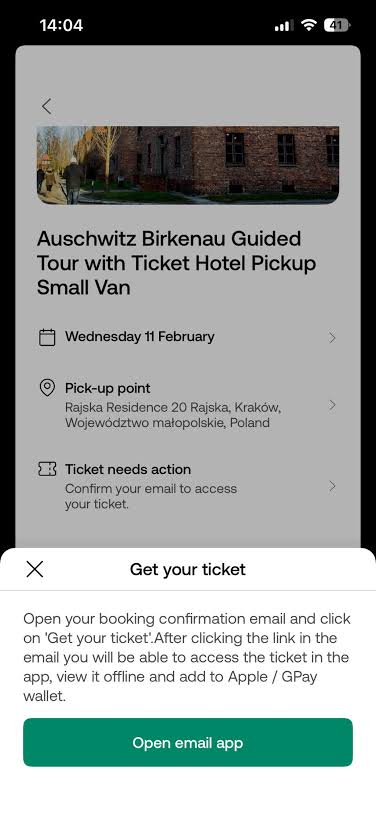
A mobile ticket is more than an admission document. It can contain instructions that determine where and when you need to arrive.
Before leaving for your activity, check:
Meeting Point
Some tours do not begin at the attraction itself.
A walking tour might start several blocks away, while a day trip may have a designated pickup location.
Start Time
Arrive early enough to locate the guide or meeting point.
This is especially important for group tours because operators may not wait for late arrivals.
Pickup Instructions
If hotel pickup is included, check whether you need to provide additional information or wait at a specific entrance.
Redemption Instructions
Some tickets must be exchanged or scanned before entry.
Follow the exact instructions on the voucher.
Identification Requirements
Certain activities may require identification. Viator recommends presenting valid photo ID when required for verification.
How to Use Viator Tickets When Traveling Internationally
International travel creates a few additional considerations.
Your phone may not have internet access when you arrive at the meeting point. You may also be dealing with unfamiliar addresses, languages, and transportation systems.
A little preparation helps.
Download or Open the Ticket Before Leaving
Do not wait until you are standing outside the attraction to load your voucher.
Open it while you still have reliable internet.
Save the Meeting Address
Keep the meeting location somewhere you can access offline.
Check the Local Time
Make sure your phone has automatically updated to the destination’s time zone.
Keep Your Phone Charged
A digital ticket is not useful if your phone battery is dead.
Carry a portable charger when possible.
Can You Modify or Cancel a Viator Booking From the App?
The Viator app allows travelers to manage their bookings, including modifying or canceling eligible reservations.
However, the exact options depend on the booking’s terms.
For example, some activities may offer free cancellation up to a specified deadline, while others may have stricter conditions.
Always check the cancellation terms associated with your specific reservation before making changes.
Can You Contact the Tour Operator Through Viator?
Yes. Viator’s app provides in-app messaging and allows travelers to contact tour guides or operators for communication.
This can be useful if you need clarification about:
- Pickup location
- Meeting point
- Start time
- Transportation
- Special instructions
If you have a question before the activity, contacting the operator in advance can prevent confusion on the day of the tour.
Common Problems With Viator Mobile Tickets
Most mobile ticket issues are easy to avoid with basic preparation.
The Voucher Will Not Load
Try opening the voucher from your confirmation email instead of relying only on the app.
You can also try opening the voucher link in another browser.
Your Phone Has No Internet
Use the app’s offline ticket functionality where available, and prepare a backup before leaving your hotel.
The Operator Cannot Find Your Booking
Show the complete voucher and booking reference.
Check that you are at the correct meeting point and that the date and time match your reservation.
The Tour Requires a Paper Voucher
Check the Voucher Information section before traveling. If a paper copy is mandatory, print it in advance.
Best Practices for Using Viator Mobile Tickets
A few simple habits can make the experience much smoother.
- Check ticket requirements immediately after booking.
- Download the Viator app before your trip.
- Open your voucher before leaving your hotel.
- Make the ticket available offline when possible.
- Take a backup screenshot.
- Save the meeting point.
- Read the Important Information section.
- Carry valid photo ID if required.
- Keep your phone charged.
- Arrive early, particularly for group tours.
Viator Mobile Tickets FAQ
Do Viator tours accept mobile tickets?
Many Viator activities accept e-vouchers that can be shown on a smartphone. However, requirements vary by activity, so check the Voucher Information section before traveling.
Where can I find my Viator mobile ticket?
You can generally access your booking through the Viator app or through the voucher link in your confirmation email.
Do I need to print my Viator voucher?
Not always. Most activities no longer require paper vouchers, but some still do. Check the specific activity’s voucher instructions.
Can I use my Viator ticket without internet?
The Viator app supports offline access to tickets, making it possible to access eligible tickets without a live internet connection.
Should I bring identification with my Viator ticket?
You should bring valid photo ID when required. Viator states that the voucher may need to be presented together with photo identification for verification.
What happens if I cannot access my voucher?
Try opening the voucher link from your confirmation email in another browser. If you still cannot access it, contact Viator customer service with your booking details.
Can I change or cancel my booking using the Viator app?
The app supports managing, modifying, and canceling eligible bookings. The available options depend on the specific booking’s terms.
Final Thoughts
Using Viator mobile tickets is generally straightforward. After booking, check your confirmation, open the voucher through the Viator app or email, and carefully read the instructions for your particular activity.
The most important thing is not to assume every tour works exactly the same way. Some experiences accept a simple e-voucher on your phone, while others may have specific redemption requirements or still require a printed voucher.
For a smoother trip, prepare your ticket before leaving your hotel, make sure you can access it offline, save the meeting point, and keep your phone charged.
With those simple steps, your smartphone can replace much of the paperwork traditionally associated with booking tours and activities.